Upwork Job & Client Analyzer: How the Scoring System Works
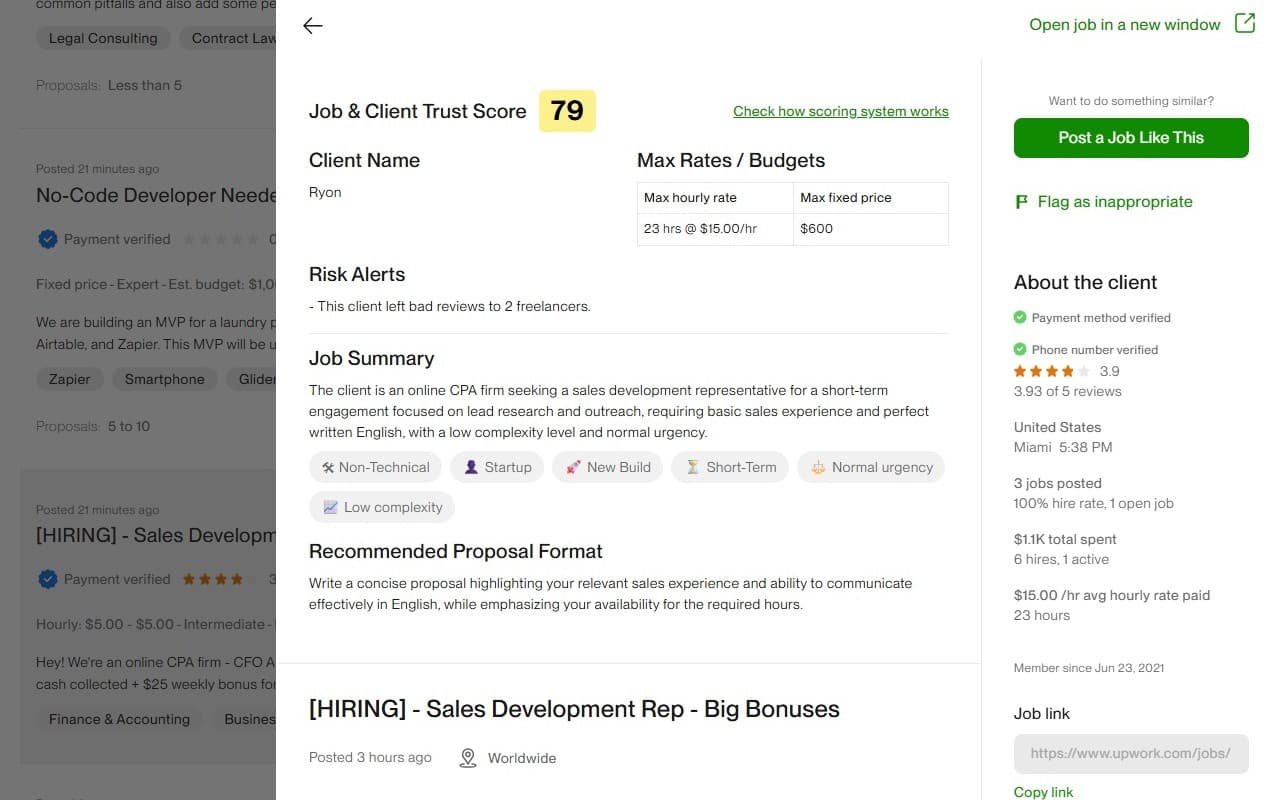
Choosing which Upwork jobs to bid on—and which clients to trust—directly affects your connects, time, and income. BidPilotPro's Upwork Job & Client Analyzer (in our Chrome extension) combines a 0–100 job score built from Upwork stats you can see on the page with an AI-powered read of the post and feedback. This article explains how that score is built, what the AI adds, and how to use both together—without treating any number as a final verdict.
What is the Job & Client Analyzer?
It's a panel in the BidPilotPro Chrome extension you open while viewing an Upwork job. It reads information that's already on the job and client profile (post text, hire history, ratings, spend, proposals, and public feedback) and turns it into a single job score from 0 to 100 plus a short AI summary, simple tags, and practical notes—so you can compare listings at a glance before you use connects.
Nothing here replaces your judgment, contracts, or interviews. Think of it as a structured checklist the extension does for you in seconds.
What you see on a job page
The extension uses what Upwork already shows: the job write-up, how many freelancers have applied, whether payment is verified, the client's rating and spending, hire rate, how long they've been on the platform, past jobs and reviews, and invitation activity when visible. That visible data feeds the numeric job score. The written parts of the post (and feedback text) are also sent securely to our AI so you get a plain-language summary, labels like urgency and complexity, and an estimate of how natural versus AI-heavy the posting sounds.
How the job score (0–100) works
The job score is calculated inside the extension from Upwork stats—not guessed by the AI. It starts from a middle baseline and moves up or down based on trust signals, competition, and patterns in the client's history. The final number is always capped between 0 and 100 so you can compare two jobs fairly.
What tends to lower the score
- Payment not verified — a large downward adjustment, because verified payment is a basic trust signal on Upwork.
- Very new client with no spend yet — extra caution when the account is brand new and hasn't spent on the platform.
- Low hire rate — clients who post often but rarely hire suggest harder closes or mismatched expectations.
- Many jobs posted but zero hires — when that pattern shows up, the score takes an additional hit beyond a generally low hire rate.
- Below-average client star rating — pulls the score down.
- Lots of invitations on the job — each invitation nudges the score down slightly (more competition and sometimes "broadcast" behavior).
- Many proposals already submitted — crowded posts get a lower contribution than jobs with only a handful of applicants.
- Weak patterns in past job feedback — the score subtracts weight when there are multiple public reviews below a healthy threshold, whether freelancers rated the client poorly or the client rated freelancers poorly. That reflects repeated friction in the work history.
What tends to raise the score
- Strong hire rate — clients who actually hire get a bonus that grows as hire rate climbs well above average.
- High client rating — especially when the stars are clearly above "good enough," the score gets extra credit.
- Meaningful total spend on Upwork — real spend history adds points, with a ceiling so one huge outlier doesn't dominate.
- Fewer competing proposals — jobs with very few applicants so far score better on this dimension than jobs already flooded with bids.
The exact weights can evolve as we tune the product, but the idea stays the same: reward clients who pay, hire, and rate fairly; penalize ambiguity, inactivity, and repeated negative signals in public history.
What the AI adds on top
The score is only half the story. The AI reads the job description and freelancer feedback snippets and adds:
- A short summary — one flowing sentence about the opportunity (type of client, kind of work, pace, complexity) without just repeating the title.
- Simple tags — things like how technical the work is, what kind of organization it might be, project stage, type of work (new build vs maintenance, etc.), whether it looks short or long-term, urgency, and complexity. Use these to filter jobs that fit your preferences.
- AI vs human writing estimate — two percentages that describe how much the post reads like generic AI output versus a more typical human-written brief. Neither is proof of anything; use them to decide if you need extra scoping questions.
- A likely first name — when feedback text makes it reasonable to infer one, so the panel feels a bit more personal.
The AI is trained to stick to the text you supplied from the page—no private messages, no hidden data.
Things to watch out for
You'll see short bullet-style notes when something deserves attention. Some come from the AI reading feedback (for example communication issues, scope concerns, or contracts ending abruptly). The extension may add a few more based on the same stats that drive the score—for example if the client joined very recently, if several freelancers left poor public reviews, if the client left poor reviews on multiple freelancers, or if an unusually high number of invitations went out for this job.
No bullet list does not mean "safe." Always use Upwork's own signals and your interview before you commit.
Proposal angle suggestion
The analyzer ends with one sentence of guidance on how to approach the proposal: tone, what to lead with, length, or what this client likely cares about. Use it alongside BidPilotPro's proposal generator so your bid matches both the job text and the client signals.
Analysis credits & plans
On a free plan, each time you run a full analysis you typically use one analysis credit from your account. Pro members can use the analyzer without that per-run credit limit (free and inactive plans still follow the credit rules).
New signups usually get a handful of credits to try the feature. Check your dashboard for the current allowance.
Best practices
- Compare jobs, don't worship one number. Use the job score, tags, and warnings together when you shortlist work.
- Read the summary last. It synthesizes the same inputs; if it conflicts with the post, re-read the description.
- Treat considerations as interview topics. Ask one direct question in your proposal or call that addresses the concern.
- Keep human oversight. Automated analysis supports decisions; it doesn't replace contracts, scope, or your expertise.
Try the Job & Client Analyzer
Install the BidPilotPro Chrome extension, open any Upwork job, and run the analyzer before you spend connects. Combine it with job filters & notifications and message copilot for a full workflow from discovery to client communication.
Get Started Free